
Staff Answer
May 07, 2026 - 10:16 AM
It's best to have your knowledge base branded in at least a simple way, so your logo is on the top and it reflects consistent with your branding. There is an easy (less than 5 minutes) way to manage that simply by adding your logo, the background color of your website header (normally white for most sites), and then if you'd like...the normal "Button" background color. All are easy to do, and we'll walk through below.
Uploading Your Logo
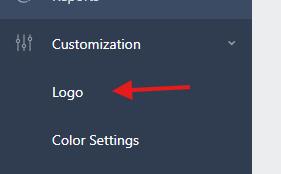
Simply grab your logo file and you can add it under "Customization > Logo" in your answerbase admin site here:
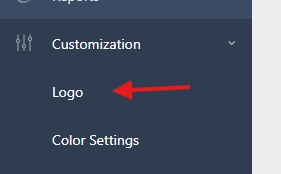
Once you're in there...just upload your logo as seen here:
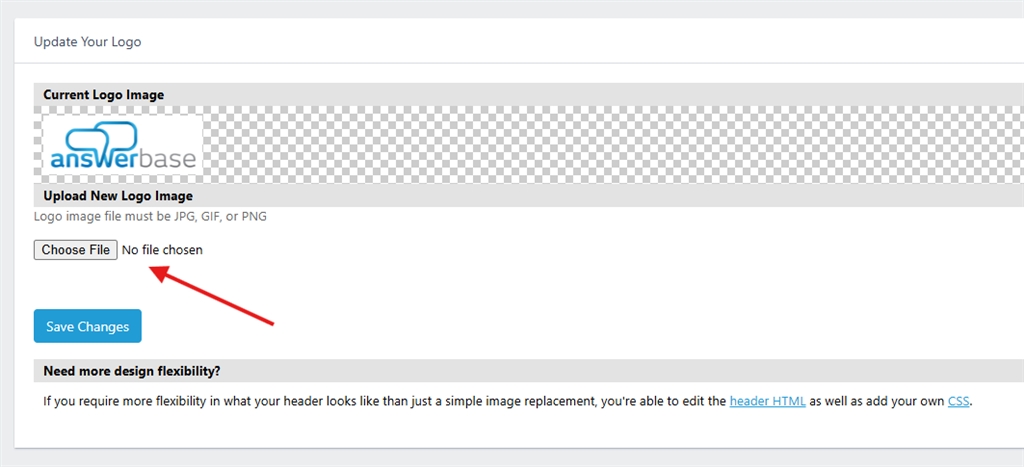
So, just pick the file and save.
NOTE: You should size the logo so it'll look good in the header, so just know that if you upload a HUGE sized logo...that isn't going to look/work well....you'll want to upload the size you'd like it to be displayed on a desktop computer.
Changing Colors of Header Background and Buttons
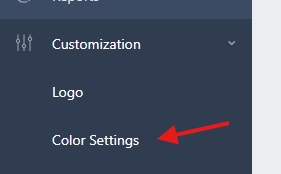
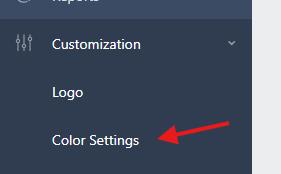
The other simple check/change is ensuring that your knowledge base header background is consistent with the background color of your logo. You can do that under "Customization > Color Settings" in your Answerbase administration dashboard as seen here:
Then you'll see the color selectors that are most often used here:
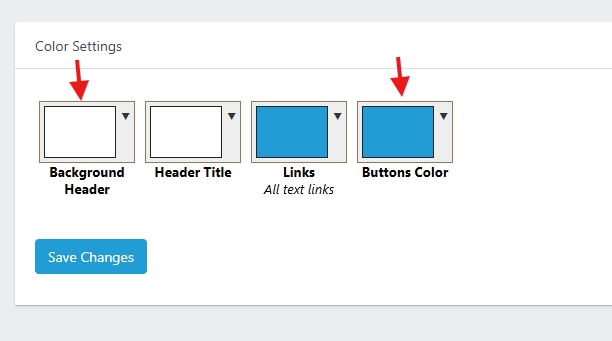
Again, most times logos are on a white background so then you'd just use the color selector and then identify #ffffff if that is the case. Then for the buttons, typically sites have a button with white text within the button....so just identify the color of your normal buttons and you should be set.
That's it, your knowledge base will have your logo and consistent colors in just a few minutes. If you'd like to consider more in-depth styling...you can overwrite any/all of the CSS styles within "Customization > CSS" so if you'd like your development team to really dig in there....they can do anything they'd like through that.
Uploading Your Logo
Simply grab your logo file and you can add it under "Customization > Logo" in your answerbase admin site here:
Once you're in there...just upload your logo as seen here:
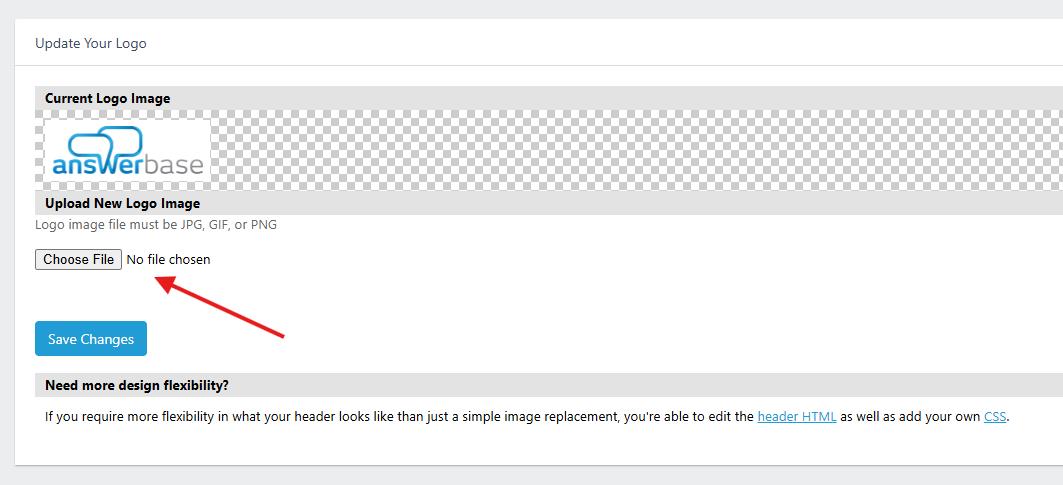
So, just pick the file and save.
NOTE: You should size the logo so it'll look good in the header, so just know that if you upload a HUGE sized logo...that isn't going to look/work well....you'll want to upload the size you'd like it to be displayed on a desktop computer.
Changing Colors of Header Background and Buttons
The other simple check/change is ensuring that your knowledge base header background is consistent with the background color of your logo. You can do that under "Customization > Color Settings" in your Answerbase administration dashboard as seen here:
Then you'll see the color selectors that are most often used here:
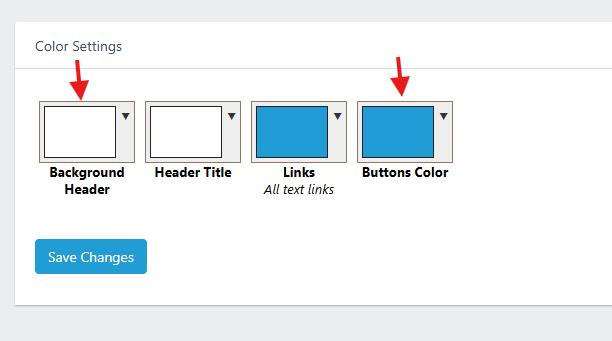
Again, most times logos are on a white background so then you'd just use the color selector and then identify #ffffff if that is the case. Then for the buttons, typically sites have a button with white text within the button....so just identify the color of your normal buttons and you should be set.
That's it, your knowledge base will have your logo and consistent colors in just a few minutes. If you'd like to consider more in-depth styling...you can overwrite any/all of the CSS styles within "Customization > CSS" so if you'd like your development team to really dig in there....they can do anything they'd like through that.
